Showing posts with label Domain Forest and Trust. Show all posts
Showing posts with label Domain Forest and Trust. Show all posts
Saturday, November 21, 2015

Repair broken Windows trust relationship between domain controller and client machine
Trust as the word indicates “Allow without fear”, the domain controller and client trust each other using a bond. Clients accept securities, policies, authentication mechanism etc. deployed in the domain controller and domain controller accepts and agrees communications from client machine. If the trust was broken, it fails the communication between domain controller and the client machine.
There are certain conditions the security bond between clients and domain controller broke, I would like to share the method that I use to fix the issue.
Better ways to fix Windows trust relationship failure issues. I cannot tell this would be a complete solution, but like to share the knowledge and effort.
First Method
- Disjoin the trust broken client machine from domain.
- Search the Active Directory computers and delete the computer account. The computer account will not be removed immediately and will be taking some time. If we suddenly rejoin the client machine, it will be picking the existing computer account for creating the bond (SID).
- Add the client computer back to domain.
Second Method
- Ensure the client machine clock is synchronized with the domain controller time, otherwise the trust relation will be having issues. The clock cannot be slow and I don’t think it will allow more than 5 minutes.
Third Method
- The searches the computer account in Active directory and reset the password, the computer account password changes automatically on certain period (30 days default).
Fourth Method
- Never have duplicate machine names in same network and apply proper SID changes if the machine were cloned.
Fifth Command Line Method
1) Find out the domain controller that was used by the client machine.
Netdom query dc
2) Test the trust relationship of the machine using PowerShell command.
Test-ComputerSecureChannel –Server *dc name* -Verbose
- If command output returns False, proceed to 3rd step.
3) Repair the trust relationship of the client machine using PowerShell command.
Test-ComputerSecureChannel –Server *dc name* -Repair -Verbose
- If the command output returns error message “Cannot find the computer account for the local computer from the domain controller”, go to Active directory and create a new computer account for the client machine and rerun the PS command once again.
- If successful repaired, the command output show “True”.

FIX: “The security database on the server does not have a computer account for this workstation trust relationship”
I’ve seen a lot of solutions, or suggestions rather, with regard to the error in the title of this post. In my experience, the problem can almost always be resolved without extra domain add/removes and reboots, which is the most prevalent solution I have seen around. Usually, this issue is due to a mismatch between attributes of the computer account in Active Directory and those values on the system itself. Here are the steps I take to fix this issue when it crops up:
- Open up Active Directory Users & Computers pointed to the domain the computer account resides in
- From the “View” pull-down menu, make sure that “Advanced Features” is checked
- Navigate to the part of your organizational unit (OU) structure where the computer account for this server resides
- Open the Properties for the computer object
- Choose the “Attribute Editor” tab on the Properties dialog box
- Check the Attributes dNSHostName & servicePrincipalName – anywhere that a fully qualified hostname is specified (e.g. myserver.mydomainname.com), make sure that the entry matches the hostname you have configured when you go here on your server: Start -> Computer -> Right-Click, Properties -> Change Settings (under “Computer name, domain… settings”) -> Full Computer Name
As an example, for a fictitious W2K8 R2 server whose Full Computer Name is “srv1.mydomainname.com”, these attribute/value pairs should be in Active Directory:
dNSHostName:
srv1.mydomainname.com
srv1.mydomainname.com
servicePrincipalName:
HOST/SRV1
HOST/srv1.mydomainname.com
RestrictedKrbHost/SRV1
RestrictedKrbHost/srv1.mydomainname.com
TERMSRV/SRV1
TERMSRV/srv1.mydomainname.com
HOST/SRV1
HOST/srv1.mydomainname.com
RestrictedKrbHost/SRV1
RestrictedKrbHost/srv1.mydomainname.com
TERMSRV/SRV1
TERMSRV/srv1.mydomainname.com
If you find that any of these entries is incorrect, go ahead and fix them; once they all align correctly try logging in again. After you make any changes, please remember that it may take up to a few minutes for those changes to replicate between all of the Active Directory domain controllers. Adjusting these values usually works to get me past the error without a reboot in our environment.
Error when I access some Active Directory (AD)-related Microsoft Management Console (MMC) snap-ins
- From the Control Panel, open the Network Connections applet, select the network adapter from the list, right-click the network adapter, and select Properties.
- From the General tab, select Internet Protocol (TCP/IP), then click Properties.
- Click the Advanced button.
- Select the Options tab.
- Select "TCP/IP filtering", then click Properties.
- For "TCP Ports", select "Permit All."
- Click OK to close all dialog boxes.
- Restart the computer for the changes to take effect.
Active Directory Domains and Trusts wont start
I just installed Active Directory on Windows Server 2008, but when I tried to open
Administrative Tools => Active Directory Users and Computers,
it shows me this error meesage :

You fix your connectivity to your domain's PDC Emulator. You can locate it by running
netdom query fsmo. Once you know which server has the PDC Emulator role,
you can check its health using
dcdiag /v. |
Friday, November 20, 2015
Windows cannot find an Active Directory Domain Controller for the domain.
In Active Directory Domains and Trusts => Domain Properties => Outgoing and Incoming Trusts Properties, when I click validate, an error appears:
Windows cannot find an Active Directory Domain Controller for the domain. Verify that an AD DC is available and then try again.
Both servers can ping each other's FQDN and can manage each other through Server Manager => All Servers.
Both servers are running with Windows Server 2012 Standard, connected remotely through IPSec VPN, and AD configured as a Parent and Child.
Fix Domain Trust Issues in Active Directory
Although the restore operation succeeded, it had some unforeseen consequences. After the restoration, all of the other servers in the domain displayed an error message at log in. This error message stated that the trust relationship between the workstation and the primary domain failed. You can see the actual error message in Figure 1.

The reason why this problem happens is because of a "password mismatch." Passwords are typically thought of as something that is assigned to a user account. However, in Active Directory environments each computer account also has an internal password. If the copy of the computer account password that is stored within the member server gets out of sync with the password copy that is stored on the domain controller then the trust relationship will be broken as a result.
So how can you fix this error? Unfortunately, the simplest fix isn't always the best option. The easy fix is to blow away the computer account within the Active Directory Users and Computers console and then rejoin the computer to the domain. Doing so reestablishes the broken-trust relationship. This approach works really well for workstations, but it can do more harm than good if you try it on a member server.
The reason for this has to do with the way that some applications use the Active Directory. Take Exchange Server, for example. Exchange Server stores messages in a mailbox database residing on a mailbox server. However, this is the only significant data that is stored locally on Exchange Server. All of the Exchange Server configuration data is stored within the Active Directory. In fact, it is possible to completely rebuild a failed Exchange Server from scratch (aside from the mailbox database) simply by making use of the configuration data that is stored in the Active Directory.
The reason why I mention this particular example is that the Exchange Server configuration data is stored within the computer object for that server. So with that in mind, imagine that a trust relationship was accidentally broken and you decided to fix the problem by deleting the Exchange Server's computer account and rejoining the computer to the domain. By doing so, you would lose all of the configuration information for that server. Worse yet, there would still be orphaned references to the computer account scattered elsewhere in the Active Directory (you can see these references by using the ADSIEdit tool). In other words, getting rid of a computer account can cause some pretty serious problems for your applications.
A better approach is to simply reset the computer account. To do so, open the Active Directory Users and Computers console and select the Computers container. Right click on the computer that you are having trouble with. Select the Reset Account command from the shortcut menu, as shown inFigure 2. When you do, you will see a prompt asking you if you are sure that you want to reset the computer account. Click Yes and the computer account will be reset.
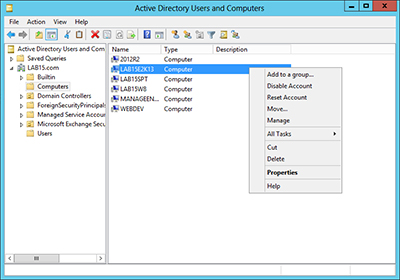
In case you are wondering, computer accounts can also be reset through PowerShell (version 2 or higher). The cmdlet used for doing so is Reset-ComputerMachinePassword.
In my experience, broken trust relationships probably aren't something that you will have to worry about on a day-to-day basis, but they can happen as a result of using backup software or imaging software to revert a server to a previous state. When this happens, the best course of action is to reset the computer account.
Active Directory Domains and Trusts Snap-in May Display Secure Channel Error Message
Trust relationships between Windows domains occur over an SC. The Active Directory Domains and Trusts snap-in (Domain.msc) and Nltest.exe command line utility both issue Query and Reset commands to validate or reset the integrity of trust relationships.
An SC query operation in the Active Directory Domains and Trusts snap-in or Nltest.exe does not initialize the SC. The query merely determines whether or not the SC is set up. An SC initializes on the first attempt to use the SC or when the Domain.msc and Nltest.exe files issue the Reset command.
If you use the Active Directory Domains and Trusts snap-in Verify command in such a situation, the following error message may appear:
If the trust is valid, the SC initializes after the Reset command, and verification of the trust is correctly reported as healthy.
An SC query operation in the Active Directory Domains and Trusts snap-in or Nltest.exe does not initialize the SC. The query merely determines whether or not the SC is set up. An SC initializes on the first attempt to use the SC or when the Domain.msc and Nltest.exe files issue the Reset command.
If you use the Active Directory Domains and Trusts snap-in Verify command in such a situation, the following error message may appear:
The Secure Channel (SC) query on domain controller <Domain Controller Name> of domain <Domain Name> to domain <Domain Name> failed. An SC reset is attempted.
This error occurs (by default) if you just restarted the computer. This also occurs if you create a trust and do not initialize an SC.If the trust is valid, the SC initializes after the Reset command, and verification of the trust is correctly reported as healthy.
Troubleshooting Active Directory Domains and Trusts
This section describes a few issues that you might encounter when you use Active Directory Domains and Trusts to manage domains and trusts.
What problem are you having?
- Clients are not able to access resources in a domain outside the forest..
- There are trust errors between servers and workstations..
- There are trust errors between Windows NT 4.0 domains and Active Directory domains..
Clients are not able to access resources in a domain outside the forest.
Cause: A failure occurred on the external trust between the domains.
Solution: Reset and verify the trust between the domains. For a trust to be reset successfully, the domain controller that holds the primary domain controller (PDC) emulator operations master role (also known as flexible single master operations or FSMO) must be available.
There are trust errors between servers and workstations.
Cause: There is incorrect time synchronization between domain controllers or workstations, the server might be down, or the trust relationship might be broken.
Solution: Run the command-line tool Netdom to verify, reset, or establish the trust between computers. This command-line tool performs batch management of trusts, verifies trusts, and secures channels between computers. It can also join computers to domains. For more information, see Verify a Trust.
There are trust errors between Windows NT 4.0 domains and Active Directory domains.
Cause: Automatic trust password resets for the trust may not reach the PDC emulator master role holder.
Solution: Run Netdom to verify, reset, or establish trust between computers. This command-line tool performs batch management of trusts, verifies trusts, and secures channels between computers. It can also join computers to domains. If this does not help solve the issue, see article Q317178 in the Microsoft Knowledge Base (http://go.microsoft.com/fwlink/?LinkId=4441).
Select the Scope of Authentication for Users
Membership in Domain Admins or Enterprise Admins , or equivalent, is the minimum required to complete this procedure. Review details about using the appropriate accounts and group memberships at http://go.microsoft.com/fwlink/?LinkId=83477.
To select the scope of authentication using the Windows interface
- Open Active Directory Domains and Trusts. To open Active Directory Domains and Trusts, click Start , click Administrative Tools , and then click Active Directory Domains and Trusts .To open Active Directory Domains and Trusts in Windows Server® 2012, click Start , type domain.msc .
- In the console tree, right-click the domain node for the domain that you want to administer, and then click Properties .
- On the Trusts tab, under either Domains trusted by this domain (outgoing trusts) or Domains that trust this domain (incoming trusts) , do one of the following:
- To select the scope of authentication for users that are authenticating through an external trust, click the external trust that you want to administer, and then clickProperties . On the Authentication tab, click either Domain-wide authentication or Selective authentication .
- To select the scope of authentication for users that are authenticating through a forest trust, click the forest trust that you want to administer, and then clickProperties . On the Authentication tab, click either Forest-wide authentication or Selective authentication .
- To select the scope of authentication for users that are authenticating through an external trust, click the external trust that you want to administer, and then clickProperties . On the Authentication tab, click either Domain-wide authentication or Selective authentication .
Remove a Trust
Membership in Domain Admins or Enterprise Admins , or equivalent, is the minimum required to complete this procedure. Review details about using the appropriate accounts and group memberships at http://go.microsoft.com/fwlink/?LinkId=83477.
Removing a trust
To remove a trust using the Windows interface
- Open Active Directory Domains and Trusts. To open Active Directory Domains and Trusts, click Start , click Administrative Tools , and then click Active Directory Domains and Trusts .To open Active Directory Domains and Trusts in Windows Server® 2012, click Start , type domain.msc .
- In the console tree, right-click the domain that contains the trust that you want to remove, and then click Properties .
- On the Trusts tab, under either Domains trusted by this domain (outgoing trusts) or Domains that trust this domain (incoming trusts) , click the trust to be removed, and then click Remove .
- Do one of the following, and then click OK :
- Click No, remove the trust from the local domain only .
If you select this option, we recommend that you repeat this procedure for the reciprocal domain. - Click Yes, remove the trust from both the local domain and the other domain .
If you select this option, you must type a user account and password with administrative credentials for the reciprocal domain.
- Click No, remove the trust from the local domain only .
Verify a Trust
Membership in Domain Admins or Enterprise Admins , or equivalent, is the minimum required to complete this procedure. Review details about using the appropriate accounts and group memberships at http://go.microsoft.com/fwlink/?LinkId=83477.
Verifying a trust
To verify a trust using the Windows interface
- Open Active Directory Domains and Trusts. To open Active Directory Domains and Trusts, click Start , click Administrative Tools , and then click Active Directory Domains and Trusts .To open Active Directory Domains and Trusts in Windows Server® 2012, click Start , type domain.msc .
- In the console tree, right-click the domain that contains the trust that you want to verify, and then click Properties .
- On the Trusts tab, under either Domains trusted by this domain (outgoing trusts) or Domains that trust this domain (incoming trusts) , click the trust to be verified, and then click Properties .
- Click Validate .
- Do one of the following, and then click OK :
- Click No, do not validate the incoming trust .
If you select this option, we recommend that you repeat this procedure for the reciprocal domain. - Click Yes, validate the incoming trust .
If you select this option, you must type a user account and password with administrative credentials for the reciprocal domain.
- Click No, do not validate the incoming trust .
Create a Realm Trust
Membership in Domain Admins or Enterprise Admins , or equivalent, is the minimum required to complete this procedure. Review details about using the appropriate accounts and group memberships at http://go.microsoft.com/fwlink/?LinkId=83477.
Creating a realm trust
To create a realm trust using the Windows interface
- Open Active Directory Domains and Trusts. To open Active Directory Domains and Trusts, click Start , click Administrative Tools , and then click Active Directory Domains and Trusts .To open Active Directory Domains and Trusts in Windows Server® 2012, click Start , type domain.msc .
- In the console tree, right-click the domain that you want to administer, and then click Properties .
- On the Trusts tab, click New trust , and then click Next .
- On the Trust Name page, type the realm name for the target realm, and then click Next .
- On the Trust Type page, select the Realm trust option, and then click Next .
- On the Transitivity of Trust page, do one of the following:
- To form a trust relationship with the domain and the specified realm, click Nontransitive , and then click Next .
- To form a trust relationship with the domain and the specified realm and all trusted realms, click Transitive , and then click Next .
- To form a trust relationship with the domain and the specified realm, click Nontransitive , and then click Next .
- On the Direction of Trust page, do one of the following:
- To create a two-way, realm trust, click Two-way .
Users in this domain and users in the specified realm will be able to access resources in either domain or realm. - To create a one-way, incoming realm trust, click One-way:incoming .
Users in the specified realm will not be able to access any resources in this domain. - To create a one-way, outgoing realm trust, click One-way:outgoing .
Users in this domain will not be able to access any resources in the specified realm.
- To create a two-way, realm trust, click Two-way .
- Continue to follow the instructions in the wizard.
Create an External Trust
Membership in Domain Admins , or Enterprise Admins , or equivalent, is the minimum required to complete this procedure. Review details about using the appropriate accounts and group memberships at http://go.microsoft.com/fwlink/?LinkId=83477.
Creating an external trust
To create an external trust using the Windows interface
- Open Active Directory Domains and Trusts. To open Active Directory Domains and Trusts, click Start , click Administrative Tools , and then click Active Directory Domains and Trusts .To open Active Directory Domains and Trusts in Windows Server® 2012, click Start , type domain.msc .
- In the console tree, right-click the domain node for the domain that you want to establish a trust with, and then click Properties .
- On the Trusts tab, click the New Trust , and then click Next .
- On the Trust Name page, type the Domain Name System (DNS) name (or NetBIOS name) of the domain, and then click Next .
- On the Trust Type page, click External trust , and then click Next .
- On the Direction of trust page, do one of the following:
- To create a two-way, external trust, click Two-way .
Users in this domain and users in the specified domain will be able to access resources in either domain. - To create a one-way, incoming external trust, click One-way:incoming .
Users in the specified domain will not be able to access any resources in this domain. - To create a one-way, outgoing external trust, click One-way:outgoing .
Users in this domain will not be able to access any resources in the specified domain.
- To create a two-way, external trust, click Two-way .
- Continue to follow the instructions in the wizard.
Create a Shortcut Trust
Membership in Domain Admins , or Enterprise Admins , or equivalent, is the minimum required to complete this procedure. Review details about using the appropriate accounts and group memberships at http://go.microsoft.com/fwlink/?LinkId=83477.
Creating a shortcut trust
To create a shortcut trust using the Windows interface
- Open Active Directory Domains and Trusts. To open Active Directory Domains and Trusts, click Start , click Administrative Tools , and then click Active Directory Domains and Trusts .To open Active Directory Domains and Trusts in Windows Server® 2012, click Start , type domain.msc .
- In the console tree, right-click the domain node for the domain that you want to establish a shortcut trust with, and then click Properties .
- On the Trusts tab, click New Trust , and then click Next .
- On the Trust Name page, type the Domain Name System (DNS) name (or NetBIOS name) of the domain, and then click Next .
- On the Direction of Trust page, do one of the following:
- To create a two-way shortcut trust, click Two-way .
Users in this domain and users in the specified domain will be able to use this trust path. - To create a one-way incoming shortcut trust, click One-way:incoming .
Users in the specified domain will not be able to use this trust path. - To create a one-way outgoing shortcut trust, click One-way:outgoing .
Users in this domain will not be able to use this trust path.
- To create a two-way shortcut trust, click Two-way .
- Continue to follow the instructions in the wizard.
Additional considerations
- To perform this procedure, you must be a member of the Domain Admins group or Enterprise Admins group in Active Directory Domain Services (AD DS), or you must have been delegated the appropriate authority. As a security best practice, consider using Run as to perform this procedure. For more information, search for "using run as" in Help and Support.
- If you have the appropriate administrative credentials for each domain, you can create both sides of a shortcut trust at the same time by clicking Both this domain and the specified domain on the Sides of Trust page.
Additional references
To create a shortcut trust using a command line
- Open a command prompt. To open a command prompt, click Start , click Run , type cmd , and then click OK .To open a command prompt in Windows Server 2012, click Start , type cmd , and then click OK .
- Type the following command, and then press ENTER:
netdom trust <TrustingDomainName> /d:<TrustedDomainName> /add
Subscribe to:
Posts (Atom)