Showing posts with label Dell Backup and Recovery. Show all posts

Sunday, November 15, 2015

Manual Restore from Dell Factory Image Win 7

Try this method if the automated Factory Restore procedure does not work. If the factory-installed Dell Backup and Recovery Manager is missing or damaged, it may be possible to manually restore the factory image using Microsoft's ImageX utility. The procedure that follows assumes you have a copy of imagex.exe and you still have a Dell Recovery partition with a factory image on it. The factory image is located at c:\Dell\Image\factory.wim.

Restoring the Factory Image will erase any user-installed programs and user data. Before proceeding, make sure you backup any user data you want to save (documents, pictures, music, etc.) and make sure you have the installation media to reinstall user programs.

(Note: Click on any image below to view a larger image. Click your browser's 'Back' button to return to this page.)

Screen 1:

Before starting, copy the imagex.exe file to a USB flash drive and insert the flash drive into a USB port on the computer.

Turn the computer on and follow the first four steps here until you get to the System Recovery Options screen.


This picture will come by pressing f8 key, when pc power on.

>Select Repair Your Computer


> Select system Image Recovery


> Click Cancel


> Click Next


>Click Advance


> Click Install a driver


>click Ok


In the left pane of the "Open" dialog box, click "Computer".

The right pane will show the drives and the drive letters that have been assigned by the booted Recovery Environment. (Note: your computer may show different drive labels or sizes than shown in this example.)

On a Dell-configured hard disk, the main Windows-7 OS partition should be identified as drive D: with the label "OS", and the Recovery partition should be identified as drive C: with the label "RECOVERY". If you have readjusted the partition layout, you may have different labels or drive letters.

Also note the drive letter of your flash drive. (In this example it is the G: drive.)

You may double-click any drive letter icon to study the files and folders in each partition. Explore the RECOVERY partition to make sure it actually has a factory image on it. The factory image will be named factory.wim and will be in the /Dell/Image folder of the RECOVERY partition.

(Note: you must have a factory.wim image file. If you don't, there is no point continuing as you have nothing from which to restore.)

Once you are satisfied that you know the drive letters of the Recovery partition and the OS partition we are going to overwrite, press "Cancel" until you return to the System Recovery Options menu


Reset Your PC and Fix Some Files are Missing Error

A quick video showing how to reset your Windows 8.1 installation to factory settings and Fix Insert Media - Some Files are Missing Error.

- Your files WILL be removed

Create System Image Backups of Windows 8.1 and Restore from it

Published on Sep 3, 2013
http://www.avoiderrors.net/?p=15084
Step by Step How to Create System Image Backups of Windows 8.1 and Restore from it.

Create the recovery disk for Windows 7

Using Dell DataSafe Local Backup 2.0

The Dell DataSafe Local Backup 2.0. software is used for Windows 7 by the following model series:
  • Dell Inspiron
  • Dell Studio
  • Dell XPS
If your model isn’t listed above, go to #1 above to see if your computer model is using the DataSafe Local Backup program or not.
These instructions are for creating a recovery disk for Windows 7 using the DataSafe Local Backup 2.0 software.
You may need one or more DVD and your computer must have a DVD burner installed. You can also use a USB flash drive as a recovery media.
Warning:
If you plan to create a system recovery disk to restore your computer’s Dell Factory Image: restoring the factory image will remove all the data from the hard disk. Backup your files before proceeding!
  1. Click on the Start icon
  2. Click All Programs
  3. Search for Dell DataSafe Local Backup 2.0
  4. Click on the Dell DataSafe Local Backup 2.0 software icon
  5. Click Backup from the list on the left
  6. Click on Create Recovery Media
  7. Select Discs if you’d like to have the recovery disk saved on a DVD or select the USB Flash Drive option if you’d like the recovery disk to be saved on a USB.
  8. Click Next
  9. Insert the DVD (or USB). The software will notify you how many DVDs you may need to create the recovery media, if you opt for saving to DVDs.
  10. Click Next
  11. Wait for the recovery media to be created
  12. Label the USB or the DVD and keep it safe!

Using Dell Backup and Recovery Manager

The Dell Backup and Recovery Manager software is used for Windows 7 by the following models:
  • Dell OptiPlex
  • Dell Latitude
  • Dell Vostro
  • Dell Precision
If your computer model is not listed above, go to #1 above and determine if your Windows 7 is using the Backup and Recovery Manager software.
If your computer is indeed using the Dell Backup and Recovery Manager software, you can follow these instructions.
Warning:
If you plan to create a system recovery disk to restore your computer’s Dell Factory Image: restoring the factory image will remove all the data from the hard disk. Backup your files before proceeding!
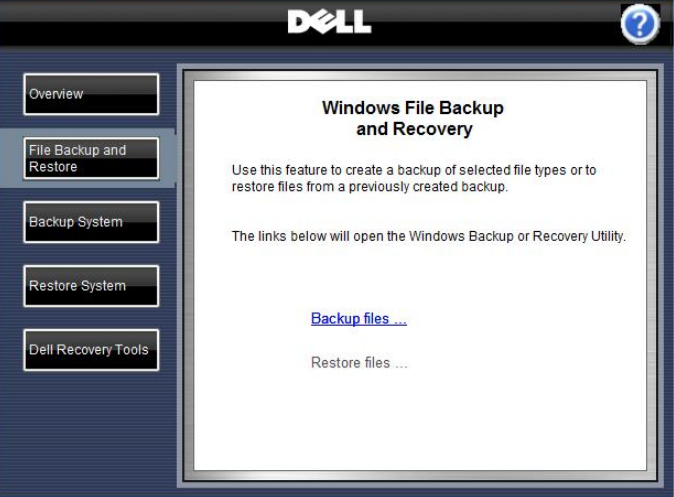
  1. Open the Dell Backup and Recovery Manager software
  2. Click on Dell Recovery Tools menu from the list on the left:
  3. The Dell Recovery Tools option
  4. Click on Create a recovery disk or device…
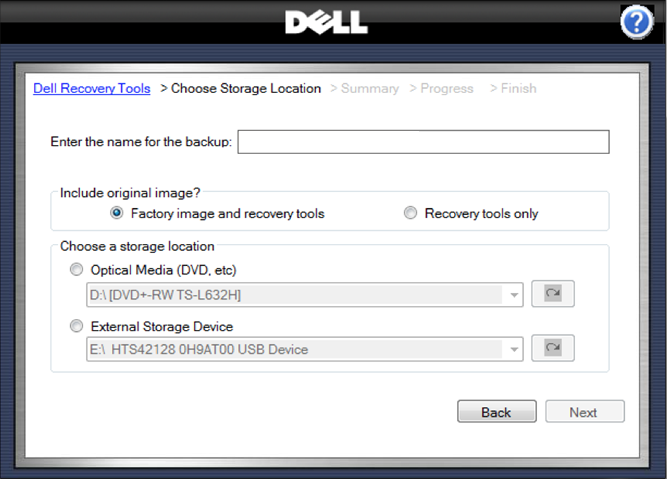
  5. Your next screen is called Choose Storage Location
  6. Choose Storage Location in Dell Recovery Tools menu
  7. Here is what you need to add in this screen:
    • The name for the recovery media you are about to created. Recommended to leave it unmodified, as suggested by the software.
    • Select if you’d like to include the factory image (recommended)
    • Where to save the recovery media: Optical Media (CDs, DVDs) or External Storage Device (USB Flash Drives etc.)
      Use the Refresh arrow on the right to refresh the storage menu list and have the latest available items
  8. Click Next
  9. The Summary screen appears. Confirm your selections before clicking Create Image.
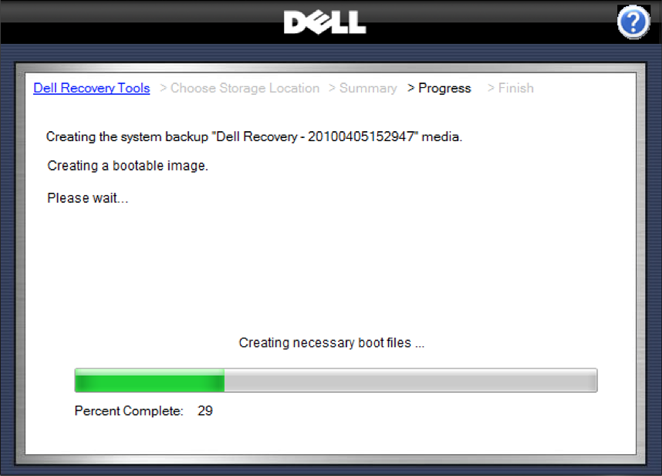
  10. Click Create Image to create the recovery media
  11. Creating a bootable recovery image...
  12. The Finish screen appears, you can remove your CD/DVD or USB and click on Close Dell Backup and Recovery Manager
  13. Label your recovery media. Keep it safe!

Create a Recovery Disk for a Dell Laptop Running Windows 8

There are two ways to create a recovery disc. They're similar, but not identical. We'll go through the steps for both methods below:

The 1st Process:
1. On the start screen, search for ‘Dell backup & recovery software’ by typing the program's name in the search box. Open the application by clicking on it.


2. Click on the ‘Reinstall Disk/Rescue Disk’ tile.


3. Now you can select either USB flash drive or discs. After selecting your desired option click on‘Continue’. Make sure that your USB drive has enough space or you have sufficient DVDs. Note that you can’t use CDs or any rewritable media.


4. Attach the USB flash drive or insert the DVD.


5. Click on ‘Start’.


6. If you use an USB Flash drive then you will be notified that the data of the drive will be lost. Click on ‘Yes’ to proceed.


7. Wait until the task is completed. Then click on ‘OK’ once done.


Restore a Computer to Factory Condition Using a Recovery Disk (Dell PC)

If you would like to return your computer back to the condition if was when it left the manufactures factory, then this video is for you. You will need the OS disk that came with your computer and is a match to the sticker on the computer case. This exercise will delete any personal information that is on your computer, so make sure you back up all your important files first.

Backup and Recovery Software

Dell has two Backup and Recovery Programs, DataSafe Local Backup 2.0, and Dell Backup and Recovery Manager.
Dell Inspirons, Studios, and XPS Systems use DataSafe Local Backup 2.0 as of April 22, 2009.
If you have an Inspiron, Studio, or XPS that you purchased before April 22, 2009.
Click here for Restore and Reinstall information.

Dell OptiPlex, Latitude, Vostro, and Precisions use Dell Backup and Recovery Manager as of May 26, 2009.
If you have an OptiPlex, Latitude, or Precision that you purchased before May 26, 2009
Click here for Restore and Reinstall information.