- At the Windows logon screen, click Switch User, and then click Other User.
- Type .\administrator as the user name, type the DSRM password for the server, and then press ENTER.
- Click Start, right-click Command Prompt, and then click Run as Administrator.
- At the command prompt, type the following command, and then press ENTER:
wbadmin get versions -backuptarget:<targetDrive>:-machine:<BackupComputerName>Where:<targetDrive>:is the location of the backup that you want to restore.<BackupComputerName>is the name of the computer where you want to recover the backup. This parameter is useful when you have backed up multiple computers to the same location or you have renamed the computer since the backup was taken.
- Identify the version that you want to restore.You must enter this version exactly in the next step.
- At the command prompt, type the following command, and then press ENTER:
wbadmin start systemstaterecovery -version:<MM/DD/YYYY-HH:MM>-backuptarget:<targetDrive>: -machine:<BackupComputerName>-quietWhere:<MM/DD/YYYY-HH:MM>is the version of the backup that you want to restore.<targetDrive>:is the volume that contains the backup.<BackupComputerName>is the name of the computer where you want to recover the backup. This parameter is useful when you have backed up multiple computers to the same location or you have renamed the computer since the backup was taken.
If you do not specify the-quietparameter, you are prompted to press Y to proceed with the restore process and press Y to confirm that the replication engine for SYSVOL has not changed since you created the backup.After the recovery operation has completed, if you are not going to perform an authoritative restore of any restored objects, restart the server.
Showing posts with label 2008. Show all posts
Showing posts with label 2008. Show all posts
Friday, November 20, 2015
Perform a nonauthoritative restore of AD DS Server 2003, 2008, 2012

Create Active Directory Sites and Services Server 2003, 2008
For this guide I have three locations (Main Office, Brach1, Branch2) connected trough a VPN connection. In every location I have two domain controllers running Windows server 2008 R2. There is a single forest and a single domain. You should configure sites before adding your Domain Controllers because if you take a look now in my Active Directory Sites and Services you will see there is mess. All Domain Controllers are in a single site; I did this on purpose. Let’s clean it up.

Open the Active Directory Sites and Services console on one of your Domain Controllers (I will use the main office DC) and for starters rename the Default-First-Site-Name. I will call mine Main-Office, because here will sit only the Domain Controllers from the main office. Now right-click Sites and choose New Site.

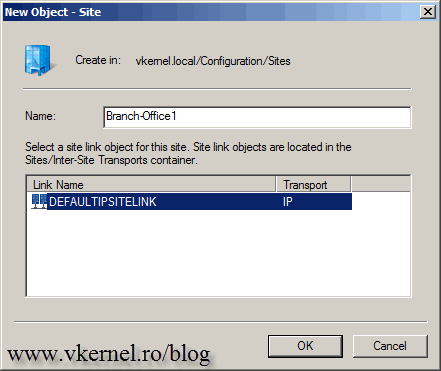
Give it a name that represents your connection. I’ll call this Branch-Office1. Select the DEFAULTIPSITELINK and click OK. Off course you will have to think of a more distinctive name for your production sites, but for now this will do. Create the rest of the sites that you need. The DEFAULTIPSITELINK is the transport that the sites will use to communicate, and this one is based on IP, actually is using RPC over TCP/IP. You can also configure it trough SMTP, but me personally never used it this way.
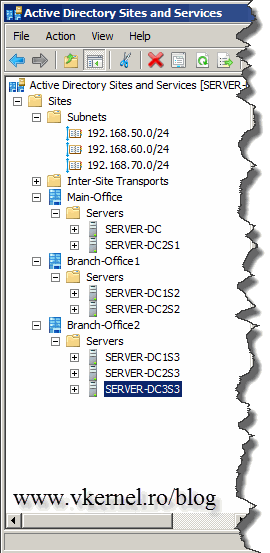
Now you should have something like this:

It’s time to create the IP subnets and assign them to our newly created sites. Right-click Subnets and choose New Subnet.

I will start with the main office, and I know that here I have 192.168.50.x/24 subnet. Put your correct subnet and preffix on the box then assign it to the correct site form the Select a site object for this preffix section. Do this for the rest of your sites subnets.


You should now have something familiar.

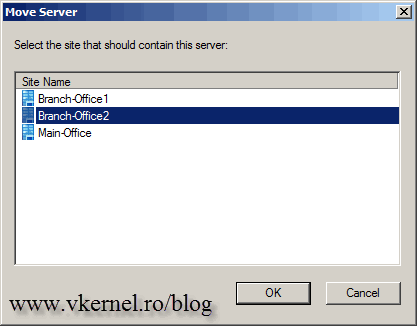
It’s time to move the servers on their correct sites. You can drag-and-drop or right-click the server and choose Move.

In the end it should look like this.

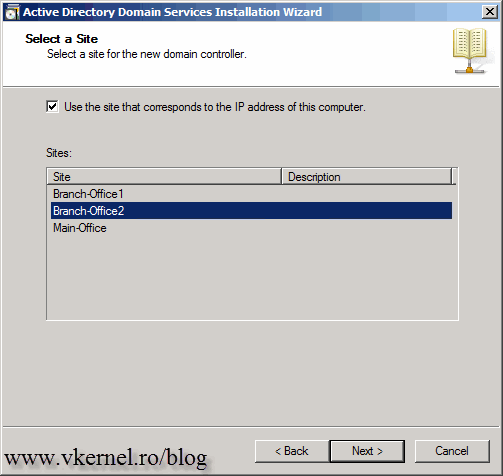
Now when you add another Domain Controller to one of your sites, the correct site is automatically chosen during the Active Directory Domain Services Installation Wizard, based on the configured subnet. Not only that, but is placed in the correct site if you take a look in the Active Directory Sites and Services console. Now that we are done creating sites, is time to configure and tune replication between them, create site links, and assign preferred bridgehead servers to transport protocols. The the steps are mentioned in this article.
Create, Rename and Delete a Site in AD Sites and Services Server 2003, 2008, 2012
- Open Active Directory Sites and Services.
- Right-click the Sites folder, and then click New Site.
- In Name, type the name of the new site.
- Click a site link object, and then click OK.
Rename a Site:
- Open Active Directory Sites and Services.
- In the console tree, right-click the site that you want to rename, and then click Rename.
Where?- Active Directory Sites and Services/Sites/site that you want to rename
- Active Directory Sites and Services/Sites/site that you want to rename
- Type the new site name.
Delete a Site:
- Open Active Directory Sites and Services.
- In the console tree, right-click the site that you want to delete, and then click Delete.
Where?- Active Directory Sites and Services/Sites/site that you want to delete
- Active Directory Sites and Services/Sites/site that you want to delete
Important
- Before a site can be deleted, any domain controller objects within the site must be deleted or moved to another site.
Notes
- To perform this procedure, you must be a member of the Enterprise Admins group in Active Directory, or you must have been delegated the appropriate authority. As a security best practice, consider using Run as to perform this procedure. For more information, see Default local groups, Default groups, and Using Run as.
- To open Active Directory Sites and Services, click Start, click Control Panel, double-click Administrative Tools, and then double-click Active Directory Sites and Services.
Subscribe to:
Posts (Atom)